If you’re getting started with cryptocurrency or Web3, you’ll eventually come across MetaMask.
I remember that one of the most confusing parts of using a crypto wallet for the first time wasn’t actually creating the wallet. It was understanding what I was responsible for after creating it.
With a traditional bank account, you can usually contact the bank if you forget your password or lose access. A self-custody crypto wallet works differently. You are responsible for protecting the credentials that control access to your assets.
That’s why setting up MetaMask correctly matters.
MetaMask is a cryptocurrency wallet that can be used to manage digital assets and interact with supported blockchain networks and decentralized applications (dApps). It is available as a browser extension and mobile application.
This guide explains how to set up MetaMask step by step, how the Secret Recovery Phrase works, how to connect safely to Web3 websites, and which mistakes beginners should avoid.
What Is MetaMask?
MetaMask is a self-custody cryptocurrency wallet.
In simple terms, it gives you tools to manage blockchain accounts and interact with decentralized applications.
Depending on the networks and assets you’re using, MetaMask can be used for activities such as:
- Managing cryptocurrency
- Sending and receiving supported digital assets
- Connecting to decentralized applications
- Viewing token balances
- Interacting with smart contracts
- Using certain Web3 services
One important thing to understand before creating a wallet is that MetaMask itself doesn’t work like a traditional bank.
Your wallet credentials are your responsibility.
If someone obtains your Secret Recovery Phrase, they may be able to control the assets associated with the wallet.
What You Need Before Installing MetaMask
The setup is fairly simple.
You can use:
- Windows PC
- Mac
- Android phone
- iPhone
- Chrome or another supported browser
- A secure internet connection
For a beginner, I recommend downloading MetaMask only through its official website or official app-store listing.
This is important because fake wallet applications and phishing websites are common problems in cryptocurrency.
Never search randomly for a wallet download and install the first result without checking where it leads.
Step 1: Download MetaMask
If you’re using a computer, start by going to the official MetaMask website.
From there, choose the appropriate browser extension and follow the installation instructions.
If you’re using a smartphone, use the official MetaMask mobile application from your device’s legitimate app store.
Check Before Installing
Before entering any wallet information, slow down and verify that you’re using the legitimate application.
A common mistake is downloading a fake wallet that looks almost identical to the real one.
Don’t trust:
- Random Telegram links
- Unknown social media accounts
- Unverified advertisements
- Suspicious emails
- Links sent by strangers
- Websites with unusual domain names
A few seconds of verification can prevent a much bigger problem.
Step 2: Open MetaMask
After installing the extension or application, open MetaMask.
You’ll generally see options for creating a new wallet or importing an existing wallet.
If you’re completely new to MetaMask and don’t already have a wallet, choose the option to create a new wallet.
If you’re restoring an existing wallet, you would use the recovery process instead.
Never enter someone else’s Secret Recovery Phrase into your browser just because they told you it will give you free cryptocurrency or access to a special wallet.
That is a major scam warning sign.
Step 3: Create a Strong Password
MetaMask will ask you to create a password for the wallet application.
Use a strong and unique password.
Avoid passwords such as:
12345678- Your name
- Your birthday
- Your phone number
password123- The same password you use for email or social media
A password manager can make this easier.
The password protects access to the wallet on your particular device, while the Secret Recovery Phrase is much more important for recovering the wallet itself.
Don’t confuse the two.
Step 4: Understand Your Secret Recovery Phrase
This is the most important part of the setup.
MetaMask provides a Secret Recovery Phrase, sometimes called a seed phrase.
It is typically a sequence of words that can be used to restore the wallet.
Think of it as the master recovery credential for the wallet.
If someone gets your Secret Recovery Phrase, they may be able to restore your wallet on another device and control the assets associated with it.
Never Share Your Secret Recovery Phrase
You should never give your recovery phrase to:
- MetaMask support
- A random website
- A Telegram administrator
- A Discord moderator
- A supposed crypto expert
- A stranger offering investment help
- Someone claiming you won a giveaway
Legitimate support should not need you to publicly reveal your Secret Recovery Phrase.
If somebody asks for it, treat that as a serious warning sign.
Step 5: Back Up Your Recovery Phrase
MetaMask will ask you to confirm or back up your Secret Recovery Phrase.
This is where I recommend slowing down.
Don’t take a screenshot of your recovery phrase and leave it in your phone’s photo gallery.
Don’t save it in an unprotected text file.
Don’t post it in cloud notes.
Don’t email it to yourself.
For long-term storage, many users prefer writing the phrase down and storing the physical backup somewhere secure and private.
The exact backup method is your responsibility, but the basic rule is simple:
Anyone who gets the recovery phrase may be able to control the wallet.
Step 6: Confirm the Recovery Phrase
MetaMask may ask you to confirm the phrase by selecting the words in the correct order.
This step verifies that you’ve actually backed it up.
Do not rush through it.
If you lose your recovery phrase and then lose access to your wallet, recovering the wallet may be impossible.
That’s very different from forgetting a normal website password.
Step 7: Complete the Wallet Setup
Once the recovery phrase has been confirmed, the wallet setup should be complete.
You’ll now have access to the wallet interface.
Depending on your MetaMask version and configuration, you may see things such as:
- Account information
- Network information
- Token balances
- Send and receive options
- Transaction activity
- Connections to decentralized applications
Take a few minutes to explore the interface before transferring valuable assets.
Step 8: Find Your Wallet Address
Your public wallet address is different from your Secret Recovery Phrase.
A wallet address is used to receive cryptocurrency or other supported digital assets.
For example, if someone wants to send you cryptocurrency on a particular network, they may ask for your wallet address.
Your public address can generally be shared for receiving funds, but your Secret Recovery Phrase should remain private.
This distinction is extremely important for beginners.
Public Address vs. Recovery Phrase
| Information | Can You Share It? |
|---|---|
| Public wallet address | Generally yes |
| Wallet username/account label | Usually yes |
| Transaction hash | Generally yes |
| Secret Recovery Phrase | Never |
| Private key | Never |
| Wallet password | Never |
Step 9: Be Careful When Receiving Crypto
One mistake I’ve seen beginners make is assuming that sending cryptocurrency is as simple as copying an address.
There is another important detail:
The blockchain network matters.
Before sending funds, make sure the sender and receiver are using a compatible network and asset.
For example, an asset can exist in different forms or networks, and choosing the wrong network can create serious problems.
Always double-check:
- The recipient address
- The cryptocurrency/token
- The blockchain network
- The amount
- The transaction fee
For larger transfers, some users first send a small test transaction before sending the full amount.
That extra step can be worthwhile.
Step 10: Connect MetaMask to a Web3 Website
One of MetaMask’s major purposes is connecting a wallet to decentralized applications.
You may see a button such as:
Connect Wallet
When you click it, the website may display several wallet options.
If MetaMask is supported, you can select it.
MetaMask will then show a connection request.
Read what you’re approving before confirming.
Don’t blindly click “Connect” on every website you visit.
What Does “Connecting” a Wallet Mean?
Connecting a wallet doesn’t necessarily mean you’ve transferred funds.
Generally, the website is asking permission to interact with your wallet in some way.
However, different applications can request different permissions or signatures.
That’s why you should read wallet prompts carefully.
A website asking you to connect your wallet is not automatically dangerous, but a suspicious website requesting unusual permissions deserves caution.
Step 11: Understand Transaction Approvals
This is another area where beginners can get into trouble.
Some decentralized applications require you to approve a token before the application can interact with it.
For example, a decentralized exchange may request token approval before you can trade.
The approval itself can be different from the later transaction that moves or swaps assets.
Don’t approve unlimited or unnecessary permissions without understanding what you’re signing.
If you’re unsure about a request, stop and investigate it first.
MetaMask Security Tips I Recommend
Setting up the wallet is only the beginning.
Your security habits matter just as much.
1. Never Share Your Secret Recovery Phrase
This is the most important rule.
If someone asks for it, don’t provide it.
2. Don’t Store Your Recovery Phrase in Screenshots
Screenshots can sync to cloud services or remain accessible through other devices.
A physical backup stored securely may reduce some of these risks.
3. Use a Dedicated Browser Profile
If you’re frequently using Web3 applications, creating a separate browser profile can help keep crypto-related activity separate from everyday browsing.
This isn’t a replacement for security software, but it can reduce accidental interaction with unrelated extensions and websites.
4. Keep Your Browser Updated
Use the latest version of your browser and operating system whenever practical.
Security updates often address vulnerabilities.
5. Be Careful With Browser Extensions
Every browser extension adds another piece of software to your environment.
Only install extensions you trust.
Remove extensions you no longer need.
6. Avoid Public Computers
I wouldn’t use a public or shared computer to access a wallet containing significant assets.
You don’t know what software, browser extensions, keyloggers, or monitoring tools might be installed.
7. Verify URLs
Phishing websites can look remarkably convincing.
Before entering sensitive information or approving transactions, verify that you’re on the legitimate website.
Don’t rely solely on logos or page design.
Common MetaMask Mistakes Beginners Make
Mistake #1: Saving the Recovery Phrase in a Chat
Some users send their recovery phrase to themselves through messaging applications.
That’s a bad idea.
Messages can be synced across devices or compromised.
Mistake #2: Taking a Screenshot
Screenshots can automatically upload to cloud photo services.
This can expose sensitive information without the user realizing it.
Mistake #3: Trusting Fake Support
Someone may contact you claiming to be MetaMask support.
They may say:
“Your wallet has been compromised. Send us your recovery phrase so we can fix it.”
Don’t do it.
Mistake #4: Signing Everything
Some beginners click through every MetaMask request without reading.
That’s risky.
Take a moment to understand what you’re approving.
Mistake #5: Sending a Large Amount Immediately
If you’re using a new wallet or sending funds to a new address, consider starting with a small test transaction when practical.
It gives you a chance to verify the address and network before moving more funds.
Mistake #6: Confusing a Wallet With an Exchange
MetaMask and a cryptocurrency exchange aren’t the same thing.
An exchange is generally a platform where users can buy, sell, or trade cryptocurrency.
A self-custody wallet gives the user control over the wallet credentials.
Each model has different responsibilities and risks.
What If You Lose Your MetaMask Password?
This is where understanding the difference between your password and Secret Recovery Phrase becomes important.
The password you use to unlock MetaMask on a device is not the same thing as the Secret Recovery Phrase.
If you need to restore the wallet, the recovery phrase is generally the critical credential.
However, don’t test your recovery phrase casually.
Before removing a wallet from a device or resetting anything, make absolutely sure your backup is correct and securely stored.
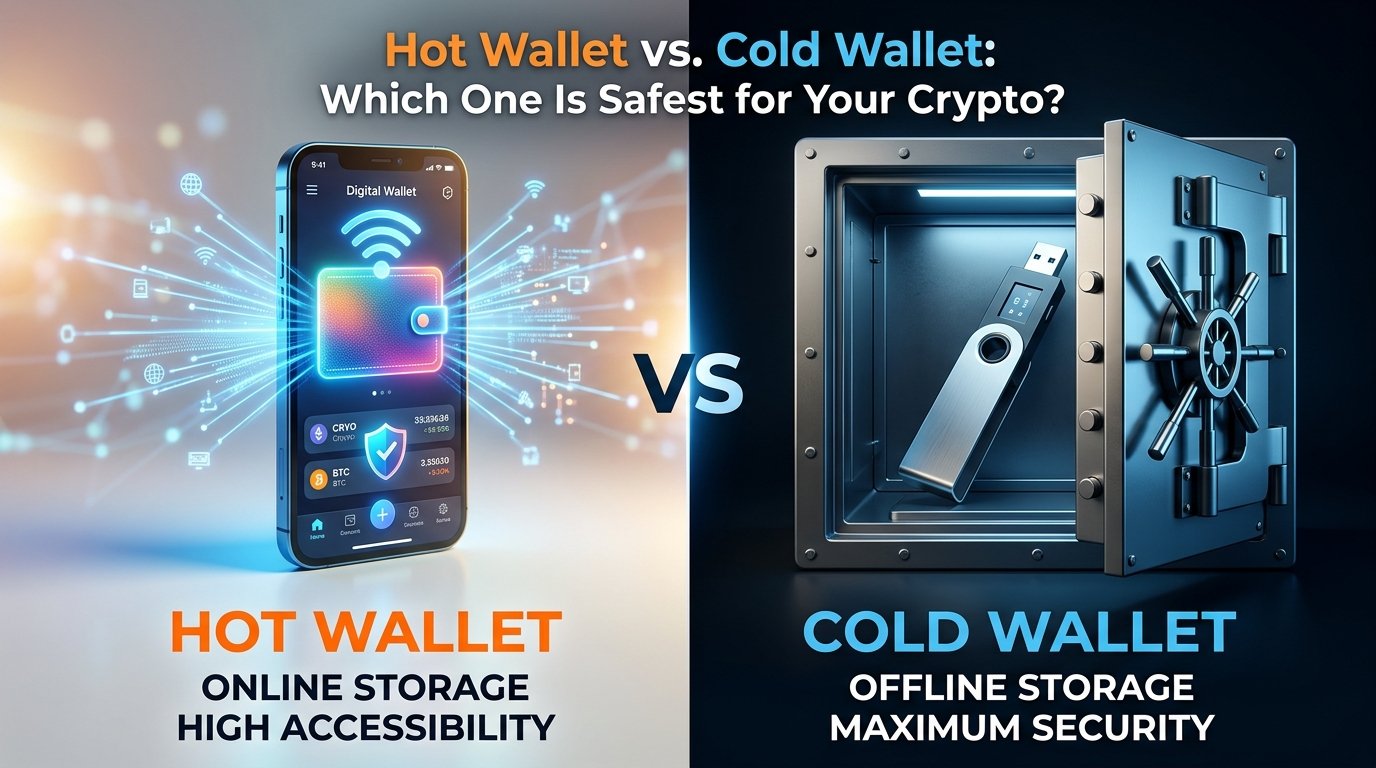
Should You Keep Large Amounts in MetaMask?
That depends on your situation and risk tolerance.
For someone experimenting with small amounts, a software wallet may be convenient.
For significant long-term holdings, some users consider hardware wallets because the private keys can be kept in a dedicated device designed for key management.
A hardware wallet doesn’t make someone immune to scams. You still need to protect recovery information and verify what you’re signing.
The key principle is to match your security setup to the amount and importance of the assets you’re protecting.
A Simple MetaMask Security Checklist
Before using your wallet seriously, check these items:
- Downloaded MetaMask from an official source
- Created a unique password
- Backed up the Secret Recovery Phrase
- Never shared the recovery phrase
- Avoided storing the phrase in screenshots
- Verified the wallet address
- Understand the blockchain network being used
- Checked transaction details before confirming
- Avoided suspicious websites
- Kept the browser and device updated
- Removed unnecessary browser extensions
- Started with small test transactions when appropriate
Is MetaMask Safe?
MetaMask can be a useful wallet, but no wallet can protect you from every possible mistake.
A large part of cryptocurrency security comes down to user behavior.
Even if the wallet software works correctly, you can still lose assets by:
- Revealing your recovery phrase
- Installing malicious software
- Visiting phishing websites
- Signing a malicious transaction
- Sending funds to the wrong address
- Using the wrong network
- Approving a dangerous smart contract
That’s why I don’t think the right question is simply “Is MetaMask safe?”
A better question is:
“Do I understand how to use MetaMask safely?”
Learning that difference can save you from expensive mistakes.
Final Thoughts
Setting up MetaMask isn’t particularly difficult. The challenging part is developing good security habits afterward.
The most important thing to remember is that a self-custody wallet gives you more direct control, but that control also comes with more responsibility.
Start slowly.
Create the wallet, secure your recovery phrase, learn the difference between public addresses and private credentials, and practice with small transactions before doing anything complicated.
When connecting to Web3 applications, don’t treat every wallet prompt as something you should automatically approve. Read what you’re signing, verify the website, and stop whenever something doesn’t make sense.
That’s the approach I recommend to anyone learning crypto: understand the wallet first, protect the recovery information second, and only then start experimenting with Web3 applications.